AV diagram software
AV diagram software that knows your gear
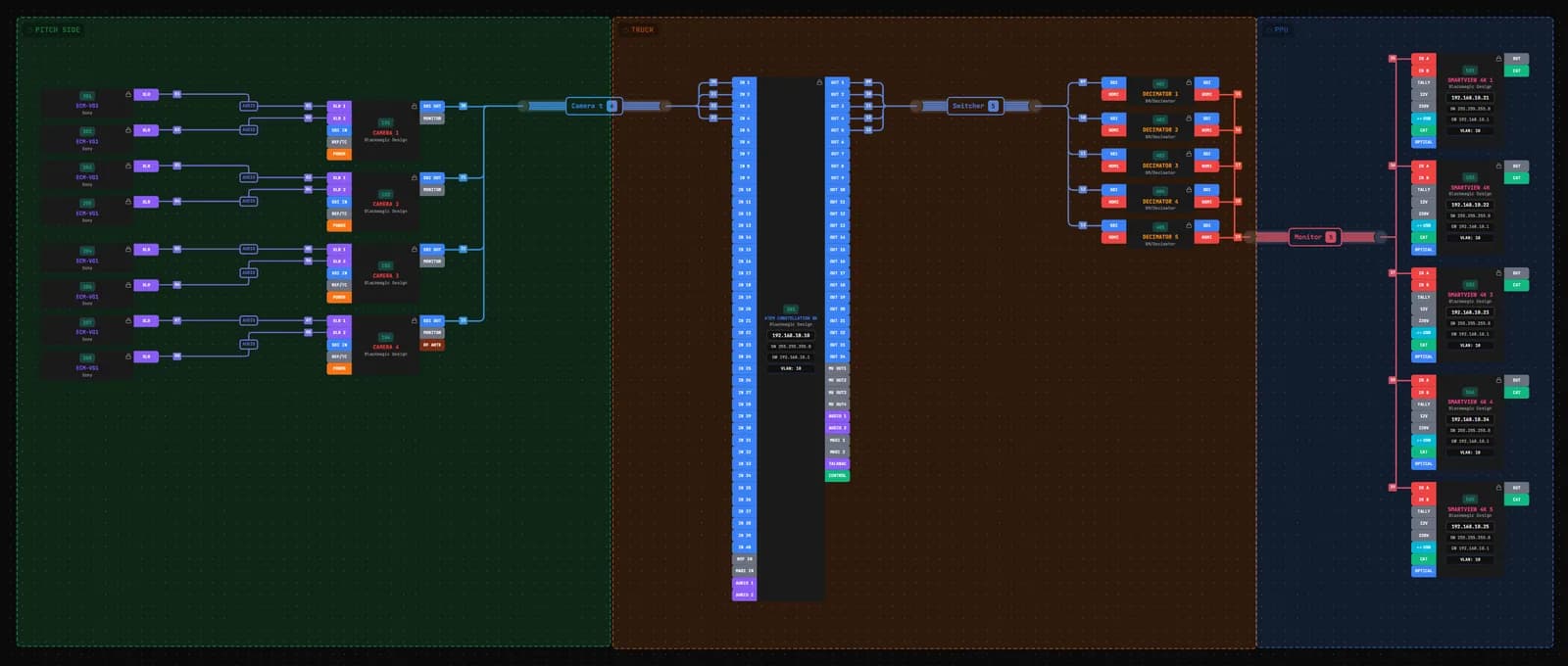
Patchify is a browser-based tool for drawing AV wiring and signal flow diagrams. Every device comes from a library with its real inputs and outputs, so each cable you draw joins two actual ports, gets a number, and lands in the cable schedule, labels and PDF without retyping.
Written by Callum Buckley ·
30-day free trial. No credit card needed.
What is AV diagram software?
AV diagram software draws how audio, video, control and network equipment is connected: which output feeds which input, over what cable. A general drawing tool gives you boxes and lines. AV diagram software gives you devices with named ports and signal types, so the drawing doubles as the data the install crew works from.
In Patchify the same project also holds the rack layout, patch panels, floor plan and job sheets, so a change to the diagram shows up everywhere it is used.
How is it different from Visio or draw.io?
Visio and draw.io are good general diagram tools, but a line between two shapes means nothing to them. You keep the cable list in a separate spreadsheet and keep the two in step by hand, which is where most on-site mistakes start.
| Task | General diagram tool | Patchify |
|---|---|---|
| Device ports | Drawn by hand as text | From the device library, with signal type |
| Wrong connection (HDMI into a mic input) | Allowed | Refused unless you allow it |
| Cable numbers | Typed by hand | Added as you draw, renumber in one step |
| Cable schedule | Separate spreadsheet | Built from the drawing |
| Cable labels | Separate job | CSV for one or both ends of each cable |
| Racks and patch panels | Separate drawings | Same project, same devices |
A worked example: a two-camera live stream
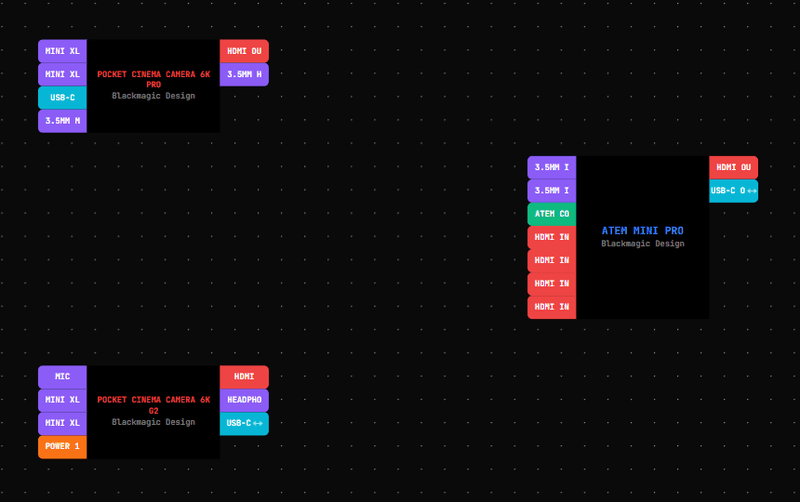
Here is a small system from start to finish: two Blackmagic Pocket Cinema cameras into an ATEM Mini Pro, with the ATEM's USB-C feeding a streaming laptop.
- Search the library for ATEM Mini Pro and both cameras and drop them on the canvas. Each arrives with its ports already listed: the ATEM's four HDMI inputs, two 3.5 mm audio inputs, HDMI out and USB-C.
- Drag from the first camera's HDMI OUT to HDMI IN 1 on the ATEM. The cable takes the HDMI colour and the next cable number.
- Try dragging the same HDMI output to a 3.5 mm input. Patchify refuses the connection because the signal types don't match.
- Connect the second camera to HDMI IN 2 and the ATEM's USB-C to the laptop. Patchify flags USB links where the two ends run at different speeds.
- Open the project report. The cable schedule lists each cable with its number, source port, destination port and signal, ready to print or export.
Which devices are in the library, and can I add my own?
The shared library holds more than 5,000 devices from over 100 manufacturers, each with its inputs and outputs mapped. Ports carry one of more than 100 signal types, from SDI, HDMI and fibre to Dante, NDI, AES67, MADI, DMX and RS-422. You can browse the port lists in the gear library without an account.
If something is missing you can build it as custom gear and reuse it on every project. Custom gear needs a paid plan.
How do cable numbers and schedules stay in sync with the drawing?
The schedule is not a copy of the drawing; it is read from it. Delete a cable on the canvas and it leaves the schedule. Renumber the project and the labels follow. A cable number can also be a custom label such as V-012 if your house style uses one.
Our guide to writing a cable schedule covers the columns and numbering schemes that work on site. The free cable label generator handles one-off labels without an account.
What do I hand the client or crew?
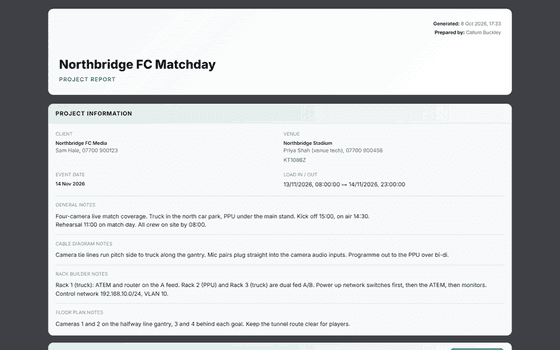
The project report puts the paperwork in one PDF: equipment list, cable schedule, rack build and wiring, panel and rack labels, power and circuits, floor plan, installation notes and a sign-off page. Diagrams also export to PNG and DXF, and schedules to CSV and Excel.
If they only need to look, send a view-only share link. Clients and crew open the live diagram in a browser without an account, and you can password-protect the link.
Can I plan racks and patch panels in the same project?
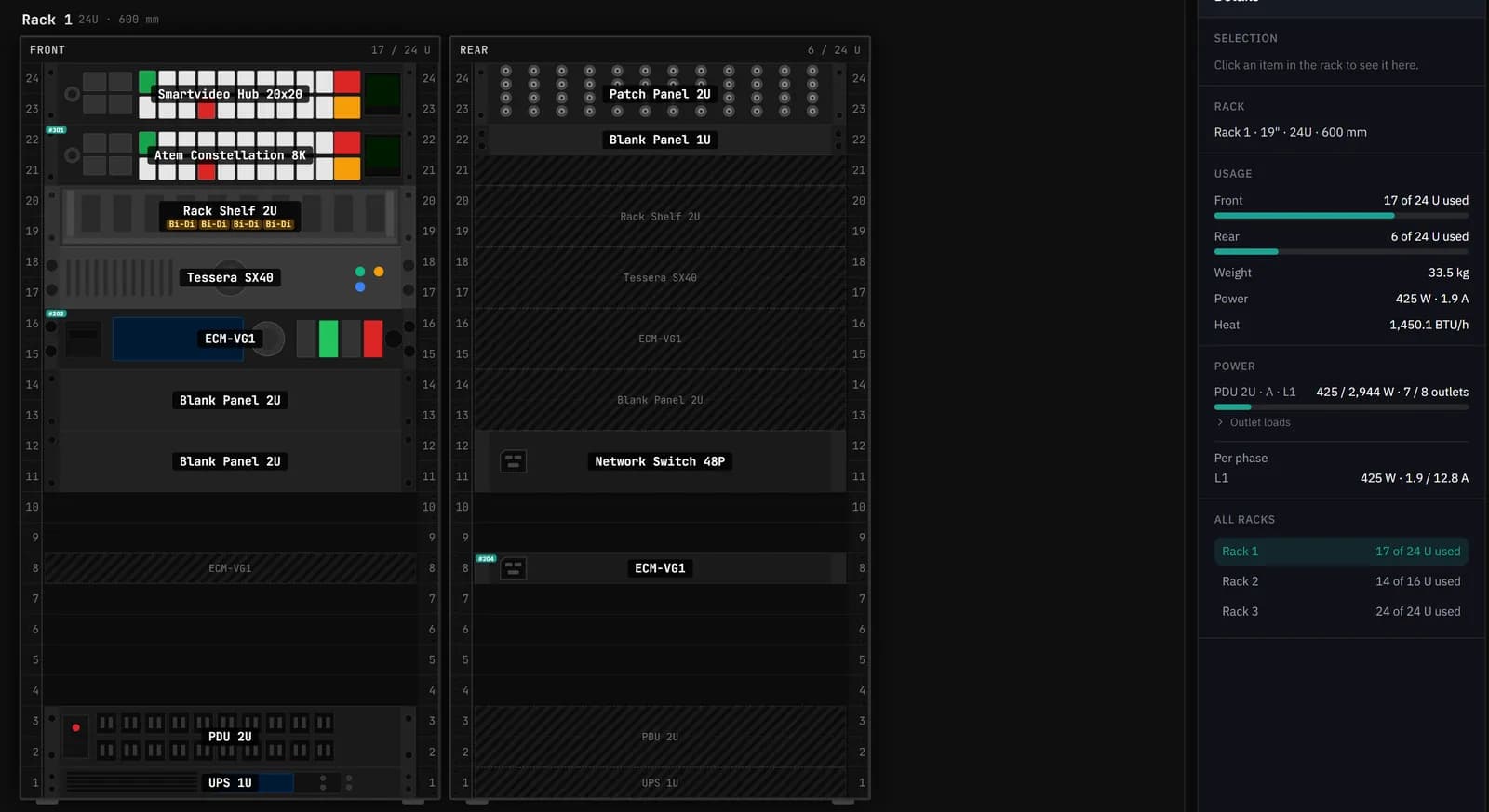
Yes. Devices on the diagram can be placed in 19" or 10" racks, and the patch panel designer builds panels whose sockets become ports on the diagram. The rack builder and patch panel designer come with the Starter plan and up.
Does it work offline?
Patchify runs in any modern browser with nothing to install. Paid plans also include a Windows desktop app that works offline and syncs when you reconnect. A macOS version is in progress.
How much does it cost?
Every account starts with a 30-day free trial, no credit card needed. After that, Starter is $15/month, Pro $30/month, Team $100/month for five people and Business $250/month for fifteen. Paying yearly gets two months free. See pricing for what each plan includes.
Compare Patchify with XTEN-AV, with prices and sourcesQuestions
Is Patchify free?
New accounts get a 30-day free trial with no credit card. After the trial, a free account keeps one project to view; paid plans start at $15 a month.
Can I import an existing Visio drawing?
No. Patchify does not import Visio files. Most people redraw the system from the library, which is quick because the devices already have their ports.
Can I export to AutoCAD?
Diagrams and patch panel faceplates export to DXF, which AutoCAD, BricsCAD and Revit open directly. Use Save As in your CAD tool if you need DWG.
Does it handle networked audio and video?
Yes. Dante, AES67, NDI, SMPTE ST 2110, SRT and Ethernet are signal types in their own right, so network links show up in the diagram and schedule like any other cable.
Can my team work on the same project?
Team and Business plans share projects across 5 or 15 members, with version history so you can see and restore earlier states.
Try it on your next job
Draw the system once and get the cable schedule, rack and PDF pack from the same project.